
What is lash?
The Terminal: Your Computer’s Text Window
Section titled “The Terminal: Your Computer’s Text Window”When you open a program called a “terminal” on your computer, you see a mostly blank window with a blinking cursor. This is where you can talk to your computer by typing commands instead of clicking buttons. The program that listens to what you type and carries out your instructions is called a shell.
Think of it like this: your desktop with its icons and folders is the “front door” of your computer. The shell is the “backstage pass” — it lets you do everything faster and with more control, once you know the basics.
So What is lash?
Section titled “So What is lash?”lash is a modern shell. It does everything a traditional shell can do — run programs, move files, search for text — but it adds a layer of convenience and power on top. It is built for Linux and macOS.
If a traditional shell is a bicycle, lash is an electric bike. You can still pedal (use all the classic commands), but you also get a boost when you want it.
What Makes lash Special?
Section titled “What Makes lash Special?”Here are the features that set lash apart, explained simply:
Classic Commands, Just Like You Know Them
Section titled “Classic Commands, Just Like You Know Them”All your POSIX commands work out of the box. ls, grep, git — everything
you already know, unchanged.
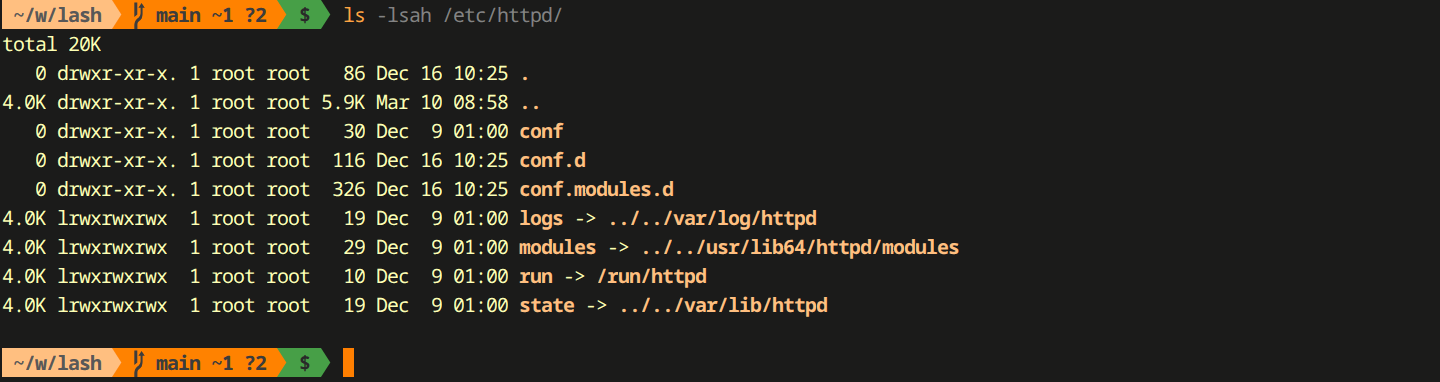
A Prompt That Tells You Things
Section titled “A Prompt That Tells You Things”When lash is ready for your next command, it shows a colorful line called the powerline prompt. This line is not just decoration — it shows you useful information at a glance:
- The folder you are currently in
- The branch name if you are inside a code project (git)
- How long your last command took to run
- Whether your last command succeeded or failed

Syntax Highlighting
Section titled “Syntax Highlighting”As you type a command, lash colors the text to help you spot mistakes before you press Enter. Valid commands appear in one color, filenames in another, and errors stand out immediately.

Tab Completion
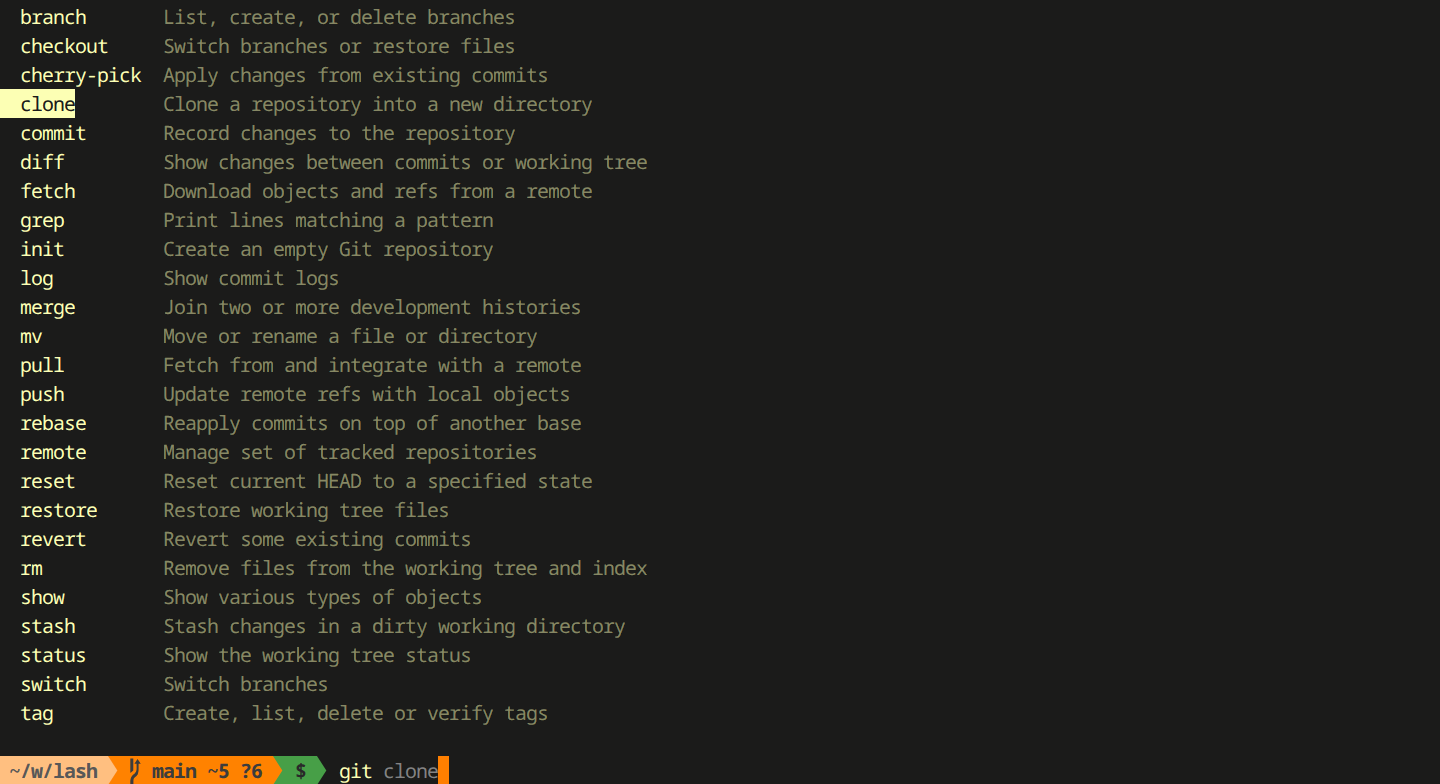
Section titled “Tab Completion”Not sure how to spell a filename or command? Type the first few letters and press the Tab key. lash will fill in the rest for you, or show you a list of options if there are several matches.
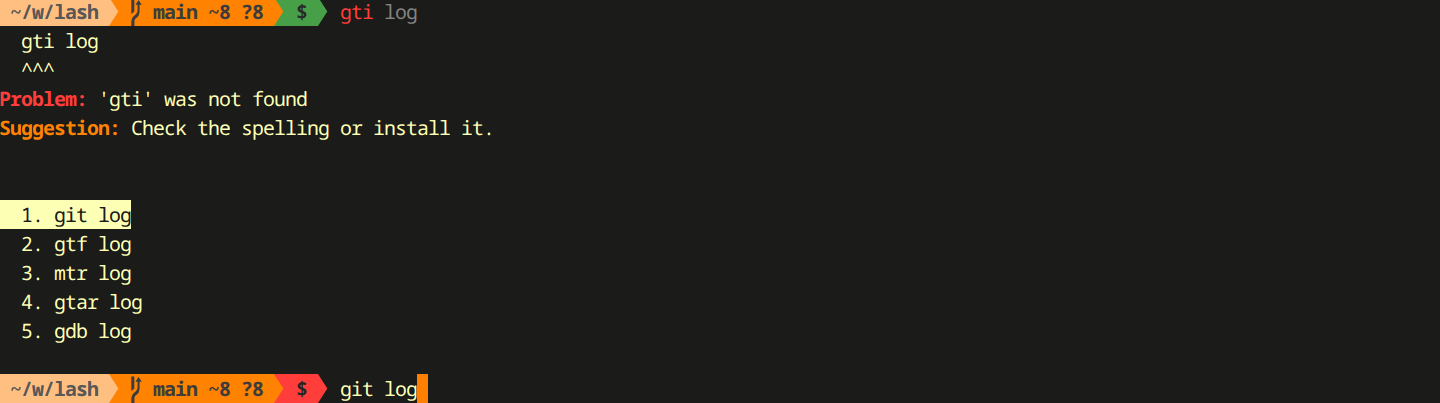
Typo Correction
Section titled “Typo Correction”Mistyped a command? lash will suggest what you probably meant and offer to run the corrected version for you.
AI Assistant
Section titled “AI Assistant”lash has a built-in AI helper. If you are stuck and do not know which command to use, you can ask the assistant in plain English and it will suggest commands for you.
Directory Jump (the z Command)
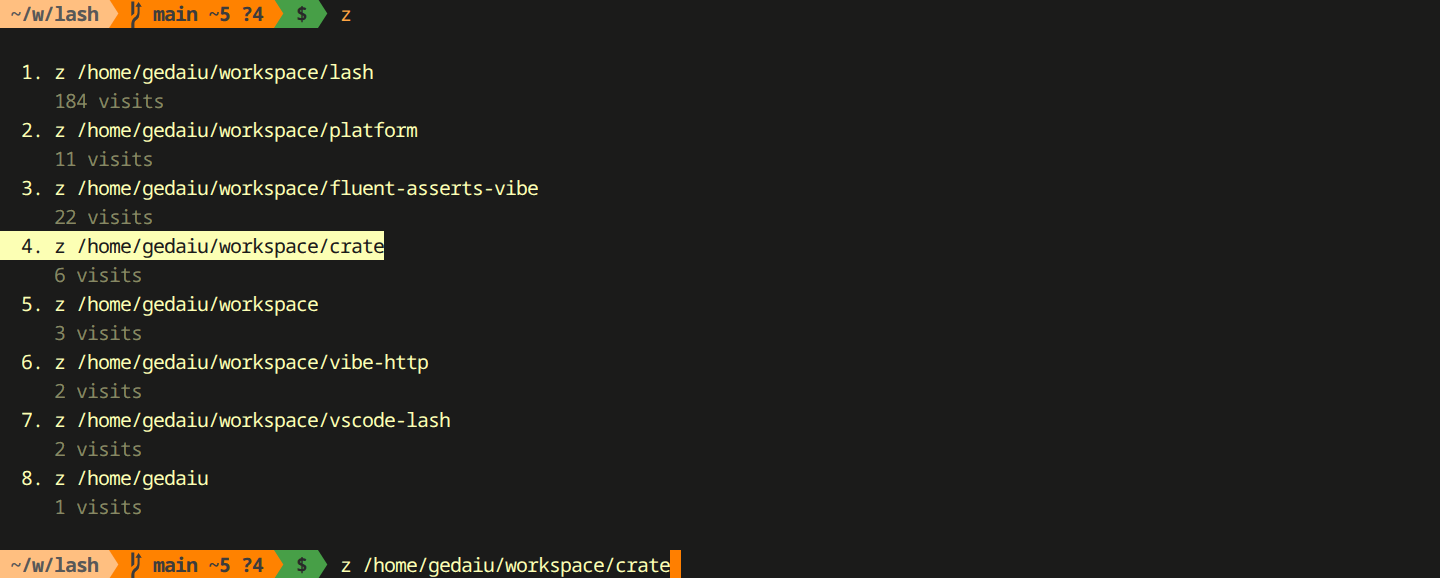
Section titled “Directory Jump (the z Command)”lash remembers which folders you visit most often. Instead of typing a long
path, you can type z followed by a keyword and lash will jump to the matching
folder. For example, if you often visit /home/you/projects/website, just type:
z websiteAnd you are there.

Functional Chains
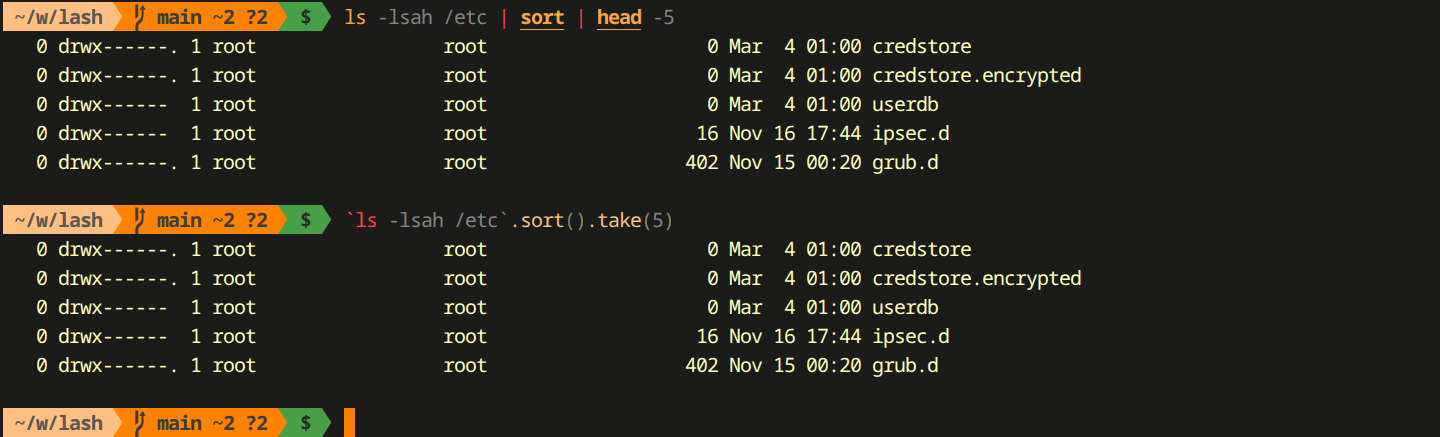
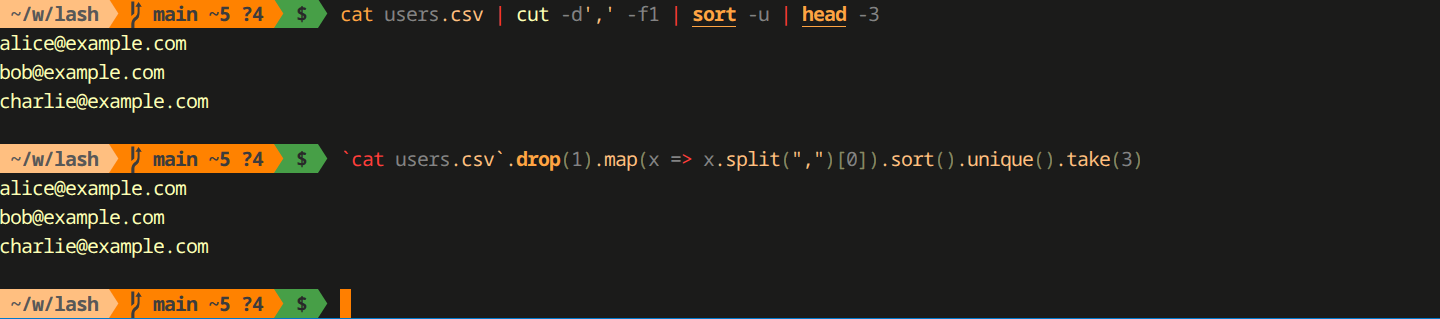
Section titled “Functional Chains”Traditional shells let you send the output of one command into another (called a “pipe”). lash takes this further with functional chains — a clean way to transform data step by step, inspired by ideas from functional programming.
Turbo Mode
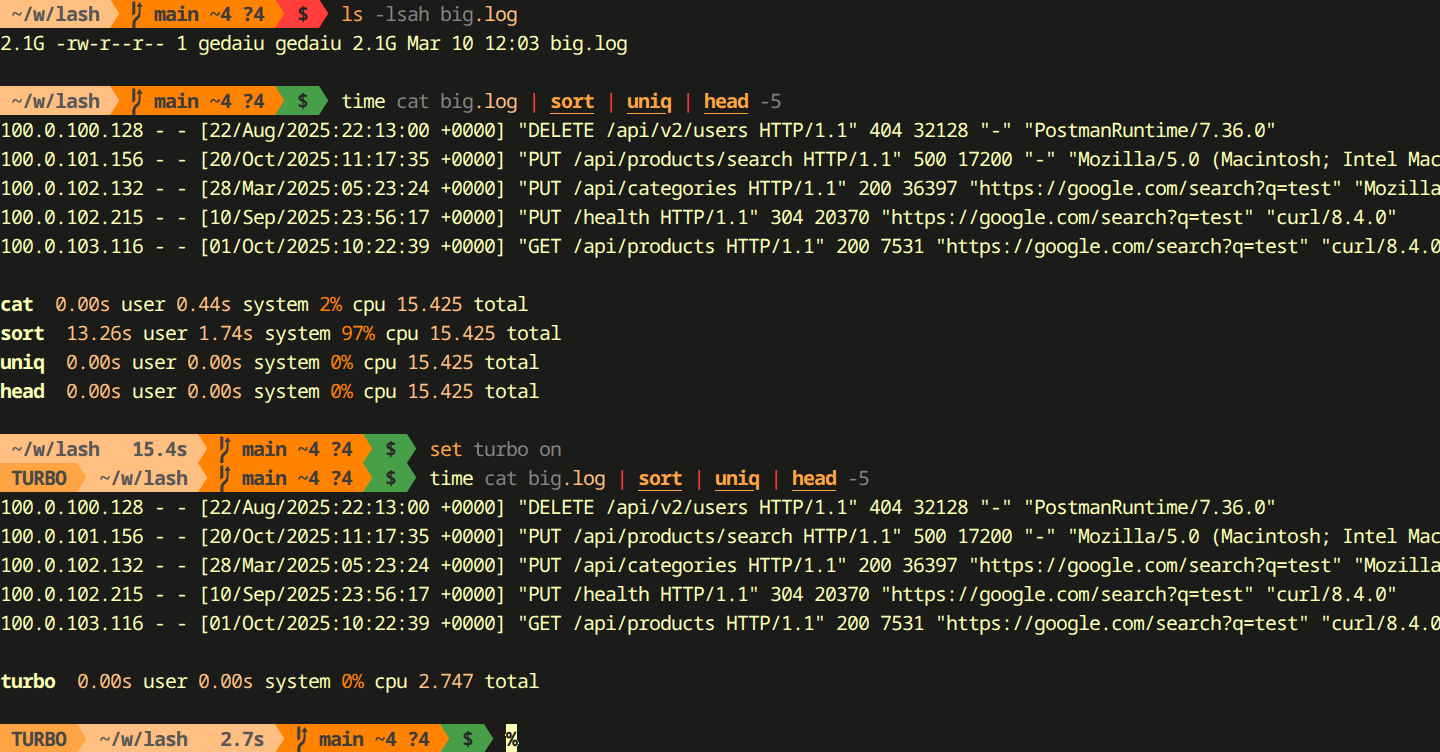
Section titled “Turbo Mode”Some common tasks — like sorting a list or counting lines — can be done much faster when lash handles them internally instead of calling separate programs. Turbo mode does this automatically. You do not need to do anything; lash detects when it can speed things up and just does it.
What You Will Need
Section titled “What You Will Need”- A computer running Linux or macOS
- A terminal application (every Linux and macOS system has one built in)
- A few minutes of curiosity
Ready to Install?
Section titled “Ready to Install?”You now know what lash is and why it might make your life easier. The next step is to get it installed on your computer.
Let’s go.